 Interactive movies
interactive movie editor and player and other photographer's utilities for working
with photo files.
Written by Miha in 2026
---------------------------------------------------------------------------------
 Table of contents
---------------------------------------------------------------------------------
1. Introduction
2. Browsing and editing photos
3. Working with frames
4. Movie making
---------------------------------------------------------------------------------
 1. INTRODUCTION
---------------------------------------------------------------------------------
Interactive movies are movies that spectator interacts with. Viewer of such a
movie could decide where a story would lead, a movie could end in two different
ways, for example.
Interactive movies are suitable for making adventure games, presentations,
categorized photo albums, stop motion animation and time lapse animation.
It also suits other various purposes:
- it is suitable for browsing through photo files
- editing files on the fly (downsizong, rotating, deleting)
- creating animations (exporting set of pictures to mp4)
---------------------------------------------------------------------------------
 2. Browsing and editing photos
---------------------------------------------------------------------------------
Use the folder panel to open a directory and inspect its files.
Click a file to preview it in the viewer.
The app can show file details and EXIF information.
Double-click a file to add it to the frames.
---------------------------------------------------------------------------------
 3. WORKING WITH FRAMES
---------------------------------------------------------------------------------
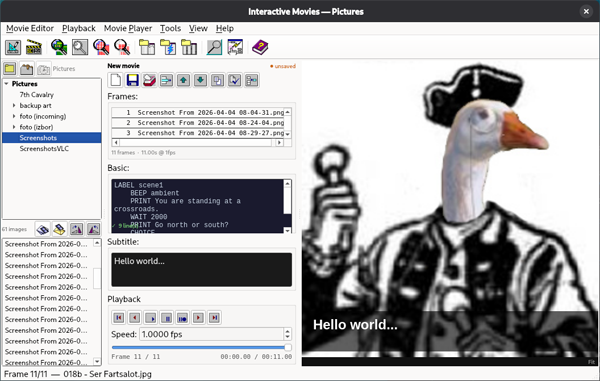
The middle panel is the heart of the movie editor. It is divided into four
sections stacked top to bottom:
Frames: the list of frames that make up your movie
Basic: the MihBas script attached to the selected frame
Subtitle: the subtitle text displayed over the selected frame
Playback: playback controls and speed setting
Each row in the Frames list represents one JPG image in your movie.
The list shows you at a glance what each frame contains:
frame number — sequential, renumbered automatically on reorder
filename — basename of the image file
[label] — the LABEL name from the frame's Basic script, if any
▶ — appears when the frame has a Basic script attached
"subtitle" — first 50 characters of the subtitle
Use the arrow keys (Up / Down) to step through frames while keeping focus
on the list. You can drag one or more frames to a new position inside the
Frames list. Select frames first (Ctrl+click or Shift+click for multiple),
then drag.
Toolbar buttons:
 New movie - Start a fresh empty movie (Ctrl+N).
You will be asked to save if unsaved changes exist.
 Save - Save the current movie (Ctrl+S).
On the first save a dialog asks for title, frame
rate, movie folder and notes.
Subsequent saves are silent.
Add files - Open a file picker to add one or more
JPG images to the end of the frame list.
 Remove - Remove the selected frame(s).
The Delete key does the same when the
Frames list has keyboard focus.
 Move up - Move the selected frame(s) one step up.
 Move down - Move the selected frame(s) one step down.
 Duplicate - Insert a copy of the selected frame(s)
immediately after the originals.
 Flag - Mark the selected frame(s) with a flag (⚑).
Flagged frames turn orange in the list.
Press F as a keyboard shortcut.
 Remove flagged - Delete all frames that carry a flag.
Use this to trim unwanted frames in bulk:
flag them first, review, then remove.
Keyboard shortcuts:
Space Play / Pause (only when a text editor does not have focus)
Escape Stop
Left Step one frame back (when not in a text editor)
Right Step one frame forward
Home Jump to first frame
End Jump to last frame
Delete Remove selected frames (when Frames list has focus)
F Flag / unflag current frame
---------------------------------------------------------------------------------
3.1 Basic editor
---------------------------------------------------------------------------------
The Basic section shows the MihBas script for the currently selected frame.
Type commands like LABEL, GOTO, PRINT,... directly into the text box. The
script is validated as you type and a status line shows the result:
✓ 4 line(s) — script is valid
⚠ Line 2: … — syntax error with line number and description
For adding script to more frames at once, use the context menu item Insert basic…
which opens a larger dialog with more comfortable editing space and a syntax
check.
Available commands are:
LABEL name
PRINT text [, line]
WAIT milliseconds
GOTO label
GOSUB label [, return_label]
RETURN
CHOICE
ONKEY "key", COMMAND
BEEP [soundname]
See Chapter 4 for the full MihBas language reference.
---------------------------------------------------------------------------------
3.2 Subtitle editor
---------------------------------------------------------------------------------
The Subtitle section shows the subtitle text for the currently selected frame.
Type the text that should appear overlaid on the image when this frame is shown.
The subtitle is rendered live in the viewer as you type, so you can see
exactly how it will look while you are writing it.
---------------------------------------------------------------------------------
3.3 Playback section
---------------------------------------------------------------------------------
 Home Jump to the first frame.
 Prev frame Step one frame backward (Left arrow key).
 Play Start playback from the selected frame
(Space bar). If already playing, Space pauses.
 Pause Pause without moving the frame pointer.
 Stop Stop playback. The current frame pointer
stays where it is — the director's position
is preserved for convenience.
 Next frame Step one frame forward (Right arrow key).
 End Jump to the last frame.
 ---------------------------------------------------------------------------------
 4. MOVIE MAKING
---------------------------------------------------------------------------------
A movie is a sequence of frames (JPG images), each with an optional Basic script
and optional subtitle text. You create the movie in the editor, then save it.
When you are ready to share it, you compile it into a self-contained folder.
---------------------------------------------------------------------------------
4.1 Creating new movie
---------------------------------------------------------------------------------
1. Open a folder in the left panel (Ctrl+O or Movie Editor → Open folder).
2. Browse to your images. Double-click a file to add it to the Frames list,
or click Add all to add every image in the folder at once.
3. Reorder frames by dragging, or use Move up / Move down.
4. Add subtitles and Basic scripts to frames as needed (see Chapter 3).
5. Save the movie (Ctrl+S).
---------------------------------------------------------------------------------
4.2 MihBas — the Basic language for interactive movies
---------------------------------------------------------------------------------
Each frame can carry a small program written in MihBas. The engine runs the
program automatically when the frame is displayed. Commands are not case-
sensitive. Arguments are separated by spaces or commas.
LABEL name
Gives this frame a name. Other frames can jump to it by name.
A frame can have only one label. The label is shown in the Frames list
in square brackets: [name]
Example:
LABEL intro
PRINT text [, line]
Displays text as a subtitle overlaid on the current frame.
Multiple PRINT commands accumulate lines top-to-bottom.
The optional line number argument is reserved for future positioning.
Semicolons are not allowed in subtitle text.
Example:
PRINT Welcome to my interactive movie
PRINT Press any key to continue
WAIT milliseconds
Pauses execution for the given number of milliseconds before continuing
to the next command. The wait is interrupted immediately if the user
selects another frame.
Example:
WAIT 3000 (wait 3 seconds)
GOTO label
Jump to the frame named label and start its Basic script from the top.
Execution of the current frame's script ends.
Example:
GOTO intro
GOSUB label [, return_label]
Jump to label like GOTO, but push the current position onto the call
stack so that RETURN can come back. The optional return_label specifies
which frame to return to; if omitted, control returns to the calling frame.
Example:
GOSUB inventory
GOSUB credits, mainmenu
RETURN
Return from a GOSUB. Jumps back to the frame that called GOSUB.
CHOICE
Wait for the user to press a key, then launch a command based on
which key was pressed.
Key names:
"up" "down" "left" "right" — arrow keys
"return" — Enter key
"escape" — Escape key
any single character in quotes — that literal key, e.g. "i"
Example:
CHOICE
"up" GOTO northscene
"down" PRINT "No way, hose!"
"c" CONTINUE
ONKEY "key", COMMAND
Launches basic command when viewer has pressed a key on the keyboard.
Available keys are alphanumerics like "a", "b" and "up", "down",
"left", "right", "escape".
Example:
ONKEY "n" GOTO northscene
BEEP [soundname]
Play soundname.mp3 from the movie folder.
To use soundtrack files, copy them to your movie folder.
Example:
BEEP soundtrack (plays soundtrack.mp3)
BEEP (stops playback)
Note: sound playback requires PyQt6-Qt6-Multimedia to be installed.
If it is not available the BEEP command is ignored.
---------------------------------------------------------------------------------
4.3 Compiling & Playing the movie
---------------------------------------------------------------------------------
When the movie is finished, compile it to make it self-contained and ready
to run on another computer.
Movie Editor → Compile (Ctrl+B)
What compile does:
- Copies every JPG file referenced in the frame list into the movie folder.
- Saves the updated .im and .imm files into the movie folder.
After compilation the movie folder contains everything needed to play the movie:
My Movie/
My Movie.im
My Movie.imm
img001.jpg
img002.jpg
soundtrack.mp3
...
Copy this folder to any computer that has Interactive Movies installed and
open the .im file to play it.
Note: the compile feature writes to the movie folder that was set when the
movie was saved. Use Save As first if you want to compile to a different
location.
To play the interactive movie click Movie Player → Run movie.
---------------------------------------------------------------------------------
4.4 Tools
---------------------------------------------------------------------------------
Downsizing images
The downsize utility resizes your large picture files to 1920x1080 resolution.
Rotating images
You can use rotate picture to change picture's orientation.
Exporting to video
You can export the frame sequence as an MP4 video file without any interactive
features. This is useful for sharing as a standard video.
The export dialog lets you choose:
- output file path and name
- frame rate
- video codec and quality options
FFmpeg must be installed and available on the system PATH for export to work.
The app will show an error in the status bar if FFmpeg is not found.
---------------------------------------------------------------------------------
4.5 Tips for directors
---------------------------------------------------------------------------------
- Work with the file list on the left and the frames list in the middle.
The Delete key removes frames when the Frames list has focus, and removes
files when the file list has focus — the app tracks which panel is active.
- LABEL every scene entry point. Labels appear in the Frames list and
make the movie easy to navigate, especially for long movies.
- Test GOTO and CHOICE navigation in edit mode. Click a frame to select it
and watch the Basic script run in the status bar.
- Put BEEP at the start of a scene frame so music starts as the frame appears.
Use a bare BEEP (no name) at the end of the movie or on a return frame to
stop the sound.
---------------------------------------------------------------------------------