🚀 KOZMODROM KONTROL v1.0
Control Panel for 'Misleča Lama' AI Hardware (Ljubljana Platform)
—————————————————————————————————————————————————————————————————
Requirements:
- a connection to AI machine or service.
- personal computer with Linux Debian
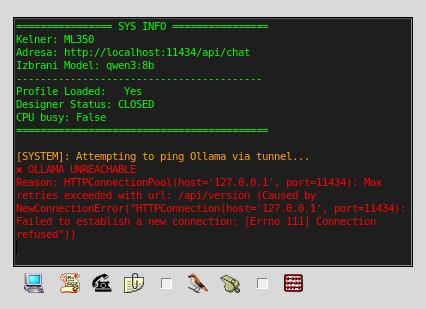
This version of Kozmodrom is configured to connect to a machine called
ML350 which runs ollama AI sofwtare, highly configurable and able to
answer any prompts. This is a home project, working on a small home AI
server.
Once connected to AI server, you can prompt engineer the system by
combining different agents. AI servers that you want to connect to
typically offer their services through web pages like famous chatGPT,
or throug platforms like equaly famous Openai, same thing, client like
Kozmodrom can call such service through API calls.
Kozmodrom Kontrol offers experimental ground for prompt engineers.
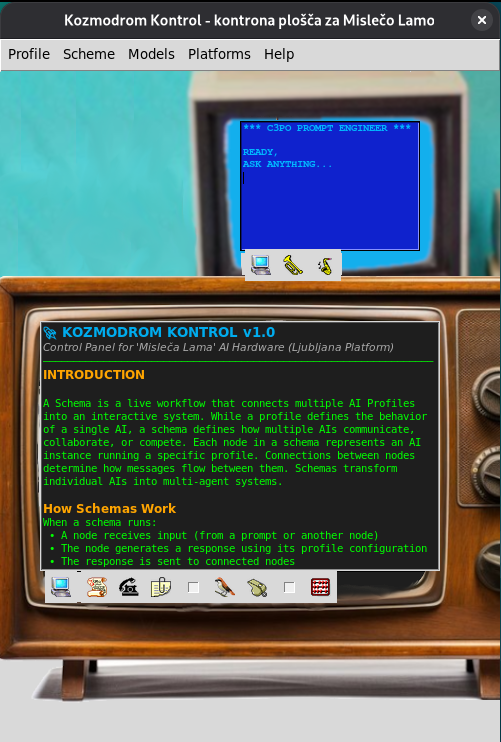 INTRODUCTION
Profile is a configuration under which to prompt AI.
Sometimes you wish to prompt this model with this parameter,
other time another model with another parameter, therefore
you design two profiles.
Kozmodrom works on the platform located in Ljubljana.
The AI brains behind are on ML300 hardware called
Misleča Lama, to which the profiles here mostly connect.
Schema is a workflow of profiles.
Sometimes you wish two profiles to have a week long dialog.
Sometimes you wish to prompt AI three times in a row,
feeding each time new prompt with the answer from previous
one. You want to design a consortium of AIs? A debate club?
Want various AIs to interact while answering the prompt?
Want to give a long scheduled task to a group of AIs?
For such scenarios, you design schemas.
🚀 KOZMODROM KONTROL USER MANUAL
—————————————————————————————————————————————————————————————————————————————————————————
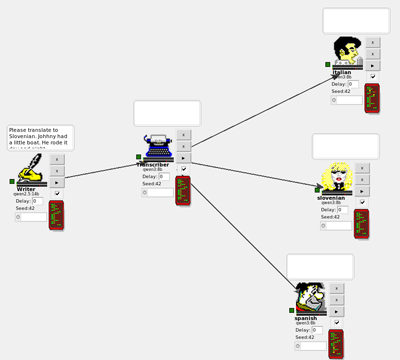
A Schema is a live workflow that connects multiple AI Profiles into an interactive system.
While a profile defines the behavior of a single AI, a schema defines how multiple AIs
communicate, collaborate, or compete. Each node in a schema represents an AI instance
running a specific profile. Connections between nodes determine how messages flow between
them. Schemas transform individual AIs into multi-agent systems.
How Schemas Work
When a schema runs:
• A node receives input (from a prompt or another node)
• The node generates a response using its profile configuration
• The response is sent to connected nodes
• Those nodes respond according to their own profiles
• The cycle continues according to the schema structure
Types of Schemas
Schemas can represent many interaction patterns. Debate systems (two or more AI nodes
challenge and critique each other’s ideas), Collaborative systems (different agents
contribute specialized knowledge), Reflection loops (an AI critiques its own answers),
Autonomous dialog chains (two AIs maintain a conversation over time), Consortiums and
Debate Clubs, ...
Examples:
• Philosopher AI → Critic AI → Philosopher AI
• Researcher → Analyst → Writer
• Generator → Reviewer → Generator
• AI A → AI B → AI A → AI B
One powerful concept in Kozmodrom is the AI Consortium. A consortium is a structured
group of AI agents with different roles: Thinker — proposes ideas,
Critic — identifies flaws, Synthesizer — merges, perspectives, Moderator — maintains
direction. By connecting these roles in a schema, Kozmodrom allows complex collective
intelligence experiments. This approach can produce more nuanced reasoning than a
single AI working alone.
Examples of Autonomous Background Workflows Schemas that run long-term automated
processes:
• Periodic research summaries
• Monitoring discussions between agents
• Generating evolving reports
• Simulating philosophical debates
Using delays and looping connections, schemas can operate like persistent cognitive
processes rather than one-time prompts.
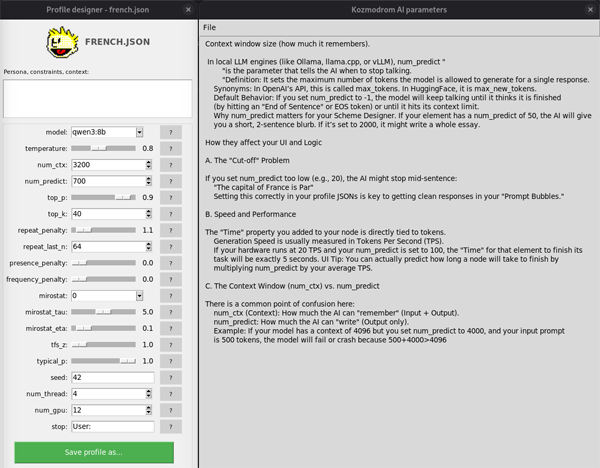
👤 PROFILES
A Profile is an AI configuration preset. It defines the model choice, temperature,
context size, and constraints. Use different profiles to switch between deterministic
reasoning and creative dialog.
 🧬 SCHEMAS
A Schema is a live workflow of interacting Profiles. Use them to:
• Design 'Consortiums' of AIs or Debate Clubs.
• Create autonomous dialog chains (A -> B -> A).
• Execute long-term scheduled background tasks.
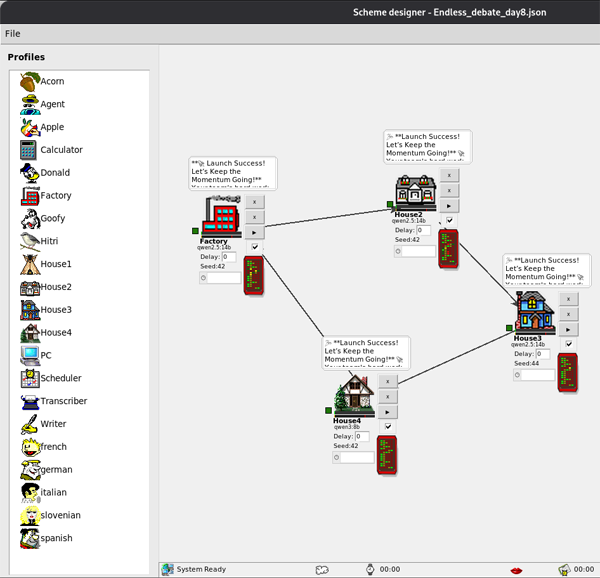 🛠️ DESIGNER SHORTCUTS
• Double-Click Profile : Add new node to the workspace.
• Drag Avatar : Move node position.
• Drag Name/Label : Create connection to another node.
• On/Off Checkbox : Enable/Disable node in the chain. Clears node's context
memory and conversation history.
• ▶ Button : Manually trigger a specific node. The node will prompt
itself with the text from the bubble and configuration settings from the Scheme
and send his answer to connected nodes.
⚙️ LIVE PROPERTIES
Properties can be edited while the schema is running:
• DELAY: Minutes to wait before answering.
• SYSTEM PROMPT: Toggle overlay to set persona, context, and constraints.
• PROMPT BUBBLE: Can be edited in real-time to intervene in a dialog.
• Practical use: set delay of 1 minute to your node, wait for promt to come to
your node from neighbour, you have 1 minute to override it with yours. Enter text
and wait a minute.
 SAVING RESULTS.
Save the profiles and schemas you create. Schemas can also be saved mid running.
When running a schema, monitor the results in main window or in live running schema.
Copy results from main monitor to save them.
To stop the schema from running, exit Scheme Designer.
DOWNLOAD SECTION
Installation:
- server side: setup ollama software or other
- client side (your pc): setup Kozmodrom Konekt
Download and unzip Kozmodrom_Kontrol_Source.zip,
install python libraries by:
cd Kozmodrom_Kontrol
python3 -m venv .venv
source .venv/bin/activate
pip install -r requirements.txt
Run the client script by:
python3 kozmodrom_kontrol.py
For more info, contact miha.podrzaj@proton.me